In this article, you will learn the causes of ad serving limits and two types of ad serving limits. Additionally, I’ll provide a step-by-step guide on how to fix ad serving limits on Adsense.
Google AdSense is a popular way to monetize your website with display ads. However, users often face the problem of ad serving limits, which restrict the number of ads that their AdSense account can show. I’ll guide you through the process of fixing your ad serving limit by applying a method that has proven to work 100% within 1-14 days.
What are ad serving limits?
Ad serving limits mean that display ads from your Google Adsense account to your website visitors are limited. This means fewer ads are shown to users, which also means fewer clicks and less revenue from display ads.
Simply put, the limit restricts the number of ads that your AdSense account can show to users on your website.
Here are some of the various warnings that can appear in your account:
- “The number of ads you can show has been limited”
- “Ad serving is limited. The number of ads you can show has been limited”
- “Ad serving limit placed on your AdSense account”
- “Ad serving is currently limited. Review the issue details and see recommendations about what you can do next”
- “Temporary ad serving limit placed on your AdSense account”
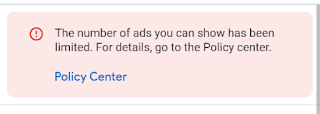
There are two types of ad serving limits: account being assessed and invalid traffic concerns. In this next section, you’ll understand the two types of ad serving limits.
Types of ad serving limits
1. Account being assessed
This limit occurs when AdSense is trying to access your traffic quality. Adsense will automatically review and update the limit after much information has been gathered about your traffic.
2. Invalid traffic concerns
If this is the cause of limited ad serving on your account, then it means that Google’s systems have detected some invalid traffic on your website.
There are different sources and ways of identifying invalid traffic. According to Google, invalid traffic includes any clicks or impressions that may artificially inflate an advertiser’s costs or a publisher’s earnings.
In simple terms, “invalid traffic” means clicks or impressions on your website that are not from a trusted source. This also includes repeated or accidental clicks or impressions generated by one or more users.
This limit will automatically be reviewed and updated as they find more information on your traffic quality. Google Adsense limits can last up to 30 days, but I was able to get mine cleared within 14 days by just performing some audits and improvements, which will be shared in this guide.
How to Fix Ad Serving Limits on Adsense
Before I dive into the steps that lifted the ad serving limit on my account, let’s look at a few things you need to do immediately after you notice an ad limit warning on your account.
1. Check your traffic sources
The first thing to do is check your website traffic sources, and make sure traffic to your website is from humans and is significant.
You can perform a site audit with a free tool like Google analytics. Google Analytics allows you to monitor your traffic source and some other insights on your website. While reviewing your traffic sources you should check if your traffic is organic (from search engines like Google, Bing, etc.) or social (from social media platforms like Facebook, Twitter, etc.)
If you have more social traffic, then you need to improve your organic traffic. In my case, I noticed an increase in social traffic.
2. Check your ad placements
You need to take note of where you place ads on your website to avoid accidental clicks which is a common source of invalid traffic.
While placing ads you need to make sure you have enough space between ads and other clickable elements on your web pages. Also, avoid placing ads that cover certain portions of your content.
3. Check what your limit warning says
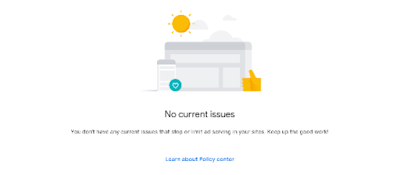
You need to know the type of limit which was placed on your account by checking the AdSense policy center. It can say “Account being assessed” or “Invalid traffic concerns” either of these warnings will determine the things you need to look out for while trying to solve the limit.
How I Fixed Ad Serving Limit on My Adsense
While my Adsense account was limited, I was able to get my account back on track after applying some changes to my website. Below a some of the changes that lifted my ad serving limit within 14 days.
1. Reviewed Traffic
As stated above, you need to take note of your traffic sources because traffic from social platforms is mostly untraceable and could be bot traffic.
To be on the safe side, your target traffic source to your website should be from organic sources like Google, Bing, Yandex, etc.
To check your traffic sources using Google Analytics, first log into your Google account and go to your property. Then, go to Reports > Acquisition > Traffic acquisition.
2. Removed some ad codes
Remove ad codes that affect the user experience from your website. Since your ads are limited, you can remove excess ad codes from your blog except for one below article and the code between the head tag. This is not compulsory, but it helps reduce the extra space on your website.
3. Updated Adsense head code
This is not compulsory, but I updated the Adsense code that was added before the </head> tag of my website. You can get a new head code by going to your Adsense dashboard > Ads > Overview > Get code.
4. Used Adsense feedback
One of the fastest ways of reaching out to the Adsense team is through the feedback button which is found on the Adsense side menu. You can write a short text explaining that a higher percentage of your traffic is organic and you need the limitations reviewed as soon as possible.
That’s all.
Final Thoughts
At this point, you now know how to fix ad serving limits on Adsense, and also the major causes of this issue.
Adsense limits might not necessarily mean you have invalid traffic, a spike or reduction in traffic can also raise suspicion from Adsense. That being said, it all depends on your traffic and how users interact with your pages.
FAQs
What causes AdSense ads limit?
From the Google Adsense support page, the main causes of Adsense ad limits are invalid traffic and bad ad experiences. Abnormalities in your traffic can also lead to a temporary ad serving limit.
Is there a limit to ad serving on Google AdSense?
No, there are no limits to ad serving on Google Adsense. However, your Google Adsense can be limited if a violation is discovered by Google.
These violations include invalid traffic, accidental clicks, persuasive ads placements, etc.
Video Guide